WonkaChat will respond, confirming the platform is working correctly.
If you receive a response, you’re all set! The AI is connected and ready to help.
4
Connect Your First Tool (Outlook Mail)
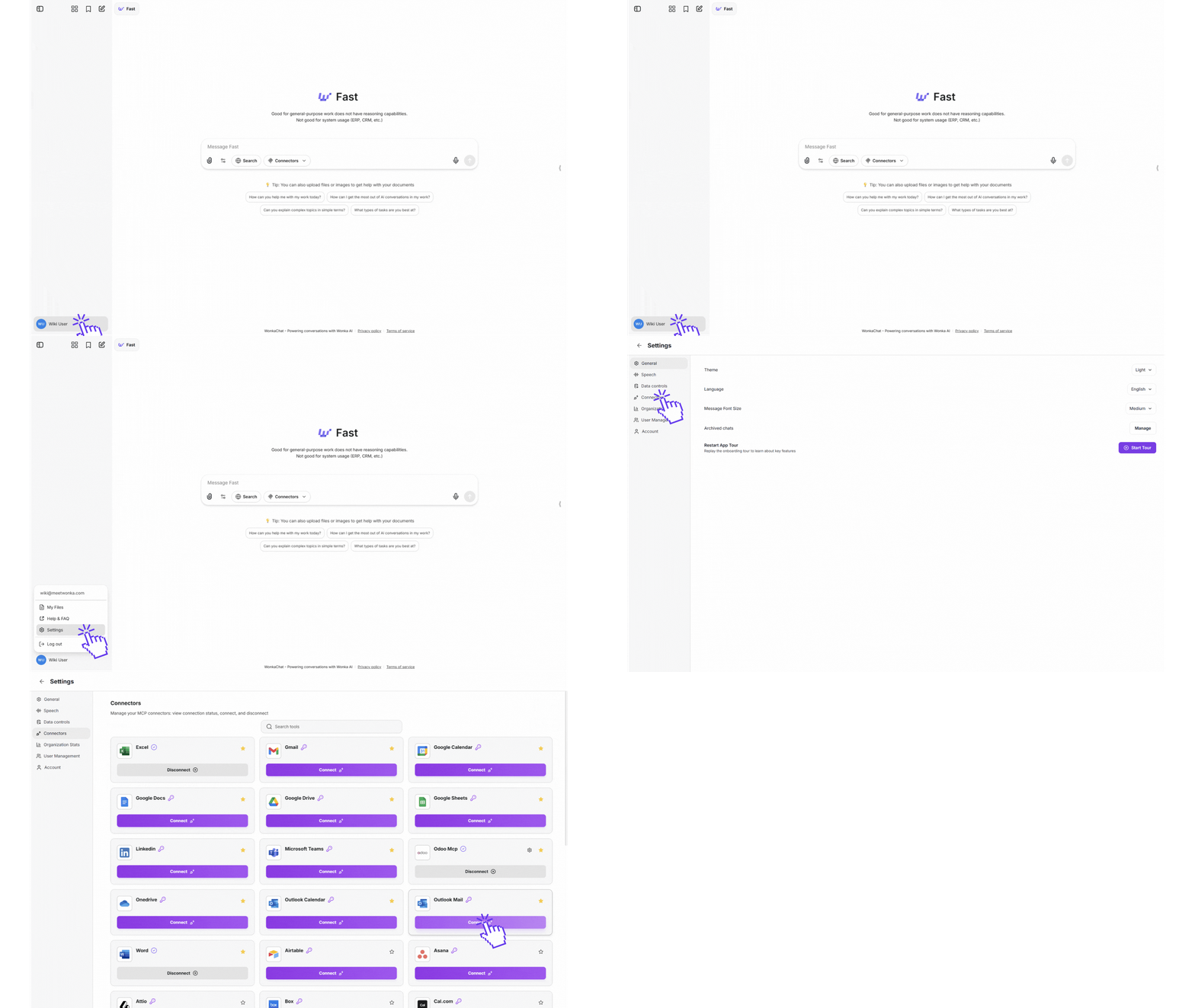
Now let’s connect WonkaChat to your email account so it can access your emails and calendar.
This example uses Outlook Mail, but the process is identical for Gmail, or any other email system. Simply click the corresponding the right connection button for your email provider and follow the same steps.
A connection window will appear asking for your credentials. Enter the required information:
Your Outlook email address
Authentication credentials (this will use your organization’s authentication method)
WonkaChat uses secure authentication and never stores your password. All credentials are encrypted.
3
Enable Connection for Your Model
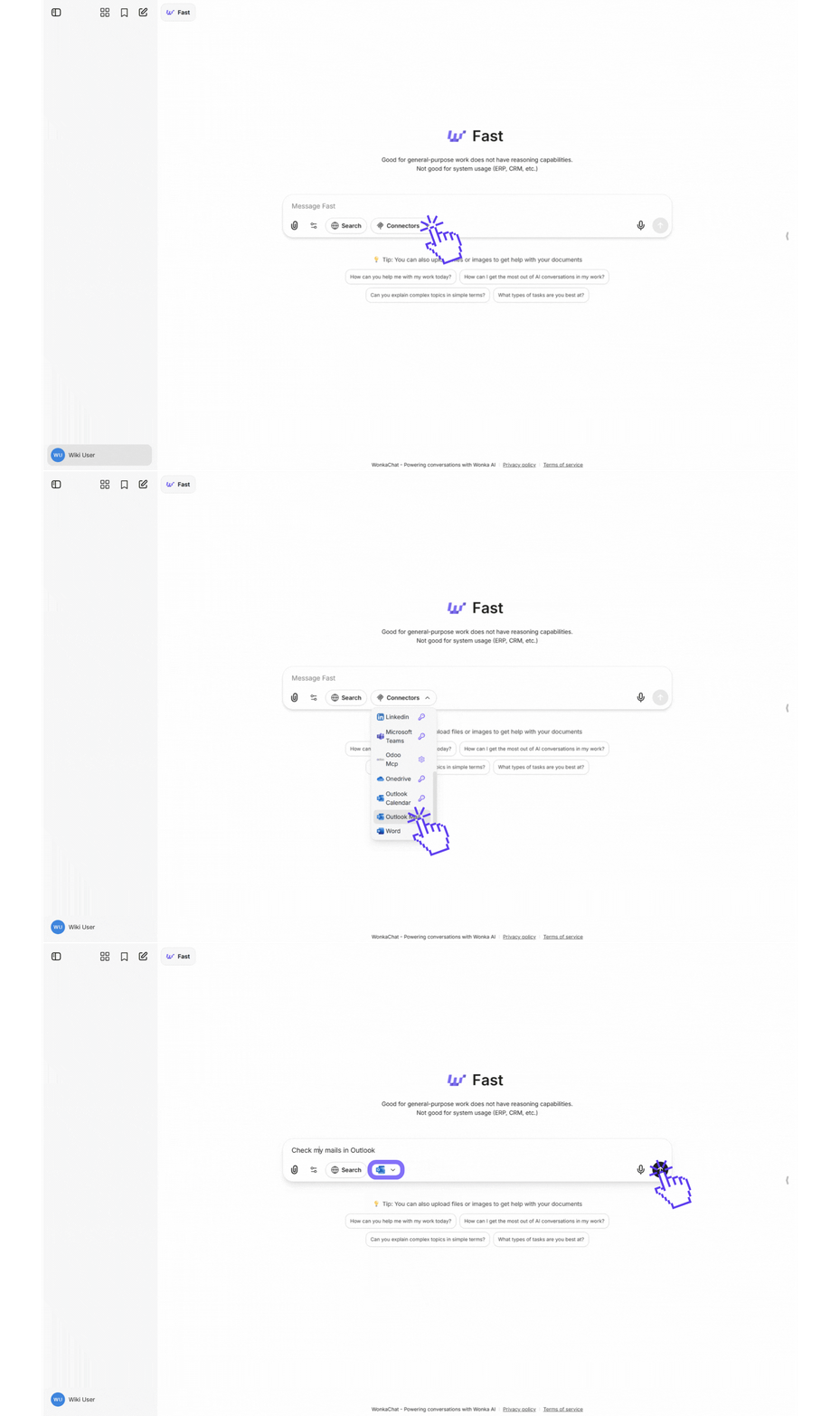
After connecting, you need to authorize the external connection for the AI model you’re using.
Enable the connection for your model
Click “Connectors” and select which connection you want the AI model to use.
Once the Outlook Mail connection is enabled, the AI can read your emails, access your calendar, send messages on your behalf, and handle any Outlook-related tasks through natural conversation.
5
Your First Connected Conversation
Now that Outlook Mail is connected, let’s use it in a conversation:
Send an email to Sarah letting her know I'll be 5 minutes late to the meeting.
The AI will only interact with Outlook or send messages when you explicitly request it. It always follows your permissions and never takes action without your direction.
WonkaChat will:
Access your Outlook account through the configured connection
Draft an email to Sarah with your update
Send directly the mail or present it for review before sending (depends on your prompt and on the model used)
You’ve successfully connected a tool and used it through natural conversation!
6
Understanding Model Selection
Choose the right model for your task:
Pro Models
Use for complex tasks:
Strategic analysis
Multi-step problem solving
Data analysis and insights
Complex workflow planning
External tool connections
Example: “Analyze our Q3 sales data and recommend improvements”
Fast Models
Use for quick tasks:
Simple questions
Fast information retrieval
Basic formatting
Quick summaries
High-volume operations
Example: “What’s my next meeting?”
When in doubt, start with pro models for important tasks. You can always switch to fast models for speed and cost once you understand the query complexity.
7
Quick Tips for Success
Be Specific
The more context you provide, the better WonkaChat can help. Include relevant details, timeframes, and desired outcomes.
Start Simple
Begin with straightforward queries and gradually work up to complex multi-step workflows as you learn the platform.
Now that you’re familiar with the basics, explore more advanced capabilities:
Create AI Agents
Build specialized agents focused on specific tasks for more accurate, reliable results with reduced hallucinations.
Understand External Connections
Learn how external connections (MCP) work and scale from connecting a single tool to integrating your entire business ecosystem.
Improve Your AI Usage
Discover techniques for asking better questions, managing conversations effectively, and getting more value from every AI interaction.
Security & Governance
Learn how to use AI securely, maintain data privacy, and implement governance policies that protect your organization while maximizing AI capabilities.