Save, organize, and reuse your best prompts with variables for efficient AI interactions.
Build a personal library of effective prompts that you can reuse and customize with variables.
Keep the prompts that work well and reuse them across conversations and projects; save time and maintain consistency across your AI interactions.
The Prompt Library helps you capture successful prompts and turn them into reusable templates for common tasks.
When you get great results from a prompt, mark it as a candidate for your library. Look for prompts that:
Produce consistently good outputs
Solve common recurring tasks
Include useful structure or formatting
Minimize errors through thorough testing
Consider using the bookmark feature to store prompts in your personal library before officially adding them to your prompt library.
2
Save to Your Library
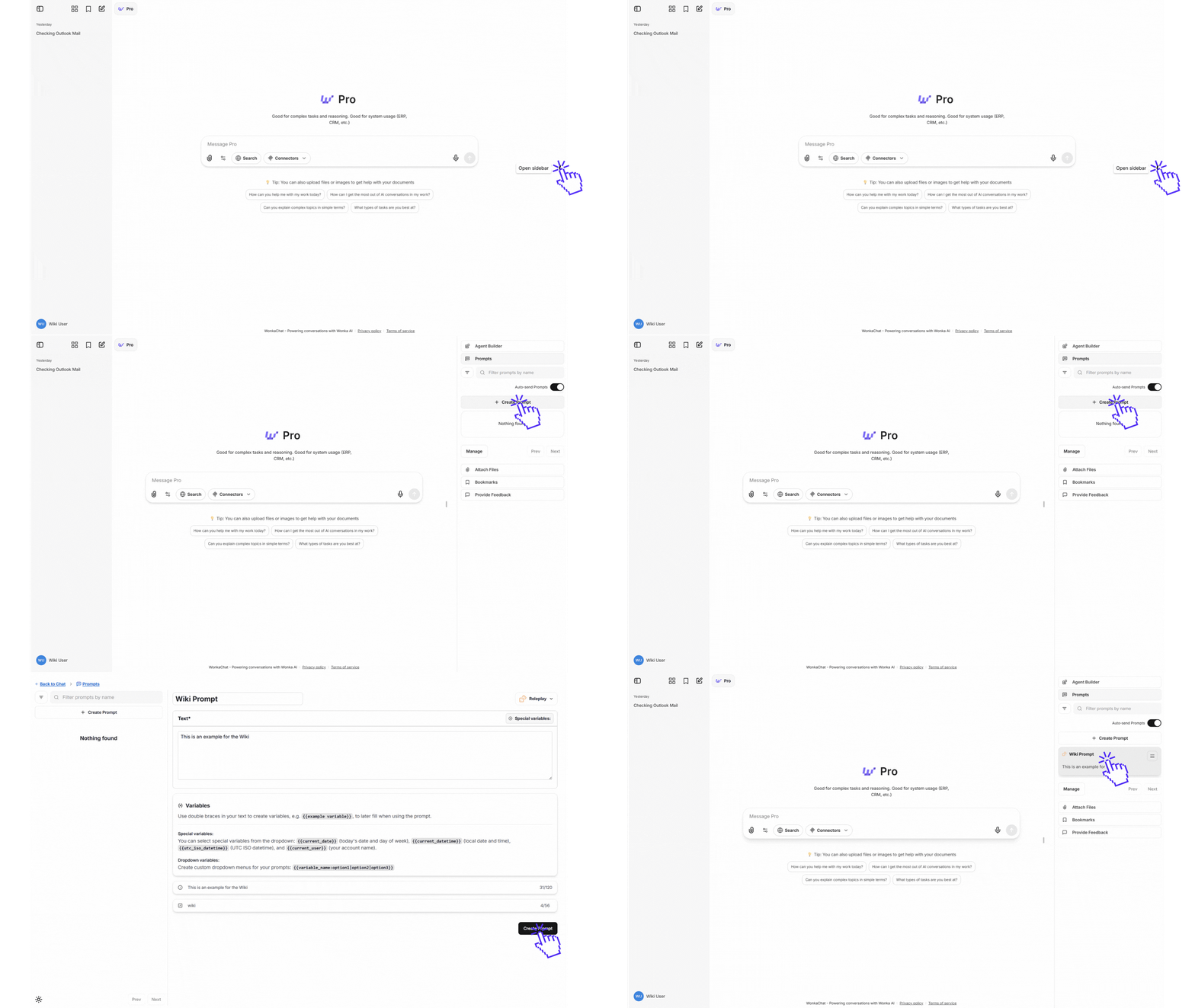
To save a prompt to your library, navigate to the right panel and select the “Prompts” section. From there, create or acces any prompt in your library.
Locate the Library Icon
3
Fill in Prompt Details
In the prompt creation form, provide:
Prompt name (required): A descriptive name for your prompt
Text (required): The full prompt text with any variables you need
Description (optional): A short description displayed when using the prompt
Command name (optional): Create a custom command shortcut to invoke this prompt quickly
Give your saved prompts descriptive names that explain their purpose, like “Code Review Template” or “Meeting Notes Summary.”
4
Save and Use
Once saved, your prompt appears in the Prompts library where you can:
Search for prompts by name using the filter
Click on a prompt to use it in a conversation
Fill in any variables when using the prompt
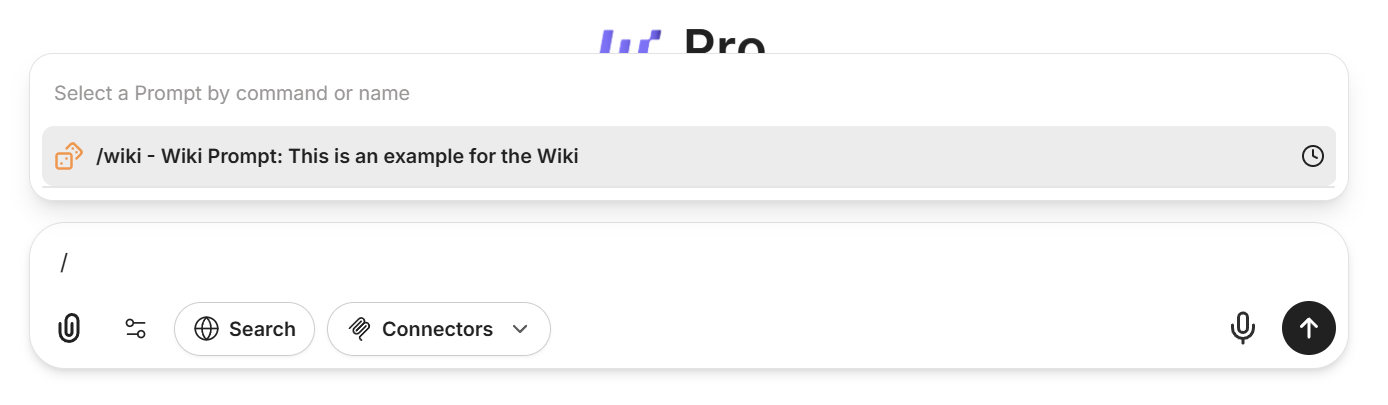
Quick usage: Prompts can be invoked by typing / followed by their name or your custom command directly from any conversation.
Make your prompts flexible and reusable with variables you customize each time. WonkaChat supports three types of variables: basic variables for your own input, special variables that automatically insert system info, and dropdown variables that let you pick from preset options.
Basic Variable Syntax
Special Variables
Dropdown Variables
Use double curly braces {{ }} to define variables anywhere in your prompt.Example 1:
Summarize the {{document_type}} for the {{target_audience}}.
When using, you’ll be asked to fill in {{document_type}} (e.g., “meeting notes”) and {{target_audience}} (e.g., “executive team”).
Example 2:
Review the {{codebase}} and highlight {{review_focus}}.
Insert dynamic information using these built-in options (no manual entry needed):
{{current_date}} - Today’s date
{{current_user}} - Your username
Example 1:
Prepare a summary for {{current_user}} as of {{current_date}}.
Example 2:
Log entry created on {{current_datetime}} by {{current_user}}.
Use dropdowns for fields with limited, pre-defined choices.Example 1:
Summarize this as {{output_style:bullet points|paragraph|table}}.
Example 2:
Compare the solution across {{environment:development|staging|production}} environments.
Choose an option from the dropdown each time you use the prompt.
Well-designed variables make your prompts adaptable to many situations without losing effectiveness.
Ready-to-use templates, organized by difficulty. Start with simple communication and organization prompts. Advance to technical and detailed prompts as you gain confidence.
Choose variable names that clearly indicate what information is needed. Use {{user_feedback}} instead of {{text}} or {{input}}.
Leverage Special Variables
Take advantage of {{current_date}}, {{current_user}}, and other built-in variables to automatically include context without manual input.
Create Dropdown Options for Common Choices
Use the dropdown syntax {{variable:option1|option2|option3}} for variables with a limited set of valid values to reduce typing and errors.
Keep Prompts Focused
Create separate prompts for different tasks rather than one overly complex prompt.
Focused prompts are not only easier to maintain and reuse, but also yield better results.