Manage user roles, user access, agent permissions, and tool restrictions to control what AI agents can do in your organization.
Control who has access to what in your WonkaChat organization. Manage users, assign roles, define granular permissions for AI agents, and restrict which tools agents can use to ensure secure collaboration.
Access control implements the principle of least privilege that allows users and agents to receive only the permissions they need to do their work.
Add, manage, and remove users in your organization through the Settings panel.
1
Access Settings
Click your name in the bottom left corner of the WonkaChat dashboard, then select User Management. Only administrators can access user management functions.
2
Invite New Users
Send email invitations to users you want to add to your organization. Users receive an invitation link to create their account and join.
3
Assign Role
Choose whether the new user will be an Admin or a User when sending the invitation.
You can change user roles at any time after they join the organization.
4
Managing Existing Users
Change Roles
Promote users to administrators or remove admin privileges as responsibilities change.
Administrators can manage their own admin rights, but cannot override or remove admin privileges from other administrators.
Remove Users
Permanently remove users from your organization. While you can easily delete and re-add users, all data associated with the account is permanently deleted and cannot be recovered.
Removing a user deletes all their data irreversibly. You can re-add the user later, but their previous agents, configurations, and settings will be gone forever. Consider deactivation for temporary access removal.
Personal agent creation• Create their own personal AI agents
• Use agents shared by administrators
• Modify shared agents only if granted permission
• Access only the personal created agents or admin shared agents
Users cannot share agents with others, only administrators can make agents available organization-wide.
Administrator
Full organizational control• Manage all users
• Create, modify, and share agents organization-wide
• Control agent permissions (who can view/modify)
• Promote users to administrator roles
Admins have complete control except they cannot override other administrators’ privileges.
Keep the number of administrators limited to those who need full organizational control. Most team members should have User roles.
Agents created by users are private by default and visible only to the creator.Users cannot share their personal agents organization-wide. Only administrators can share agents.
If a user creates a valuable agent and wants to share it, they should contact an administrator to review and share it.
Agents shared by administrators can be made available to:
Specific users: Select individuals who can access the agent
Entire organization: All users in the organization
Admins control the exact permission level (Viewer, Editor, or Owner) for each shared agent.
Shared agents appear in users’ agent lists based on the permissions they’ve been granted.
Navigate to the agent you want to share (or create a new one) in the Agent Builder.
2
Configure Sharing Settings
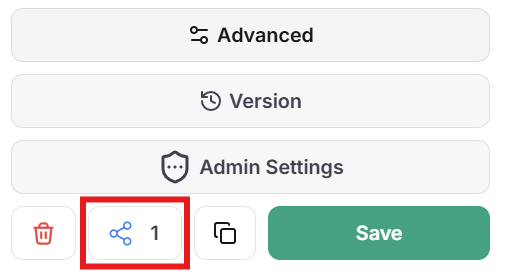
In the Agent Builder panel, you’ll find sharing options:
Agent Sharing location
Visibility:
Share with the entire organization, or
Share with specific users
Permission Levels:
Viewer: Can view and use the agent (no modifications)
Editor: Can view, use, and modify the agent
Owner: Has full control including sharing and deletion
For important organizational agents, use Viewer permissions for most users and grant Editor access only to trusted collaborators.
3
Review Tool Access
Before sharing, verify which tools and MCP connections the agent has access to. Ensure they’re appropriate for all users who will have access.
When users interact with a shared agent, the agent inherits that user’s permissions in connected tools. Consider what data different users can access.
4
Save and Share
Save your sharing configuration. The agent immediately becomes available to the specified users based on the permissions you set.
Users will see the shared agent in their agent list and can start using it according to their granted permissions.
As a standard user, you can create personal agents but need administrator involvement to share them organization-wide.
If you create an agent that would benefit others, contact an administrator to request organization-wide sharing.Provide:
Clear description of what the agent does
Intended use cases
Why it would benefit the organization
Which tools it requires
Administrators need to review agents for security, tool access, and compliance before sharing them widely.
When creating an AI agent, you can control exactly which tools it has access to. This ensures agents only have the capabilities they need to perform their intended function.
When you add an MCP connection (like Outlook, GitHub, or Slack) to an agent, you can selectively enable or disable individual tools within that connection.For example, if you add the Outlook MCP connection to an agent:
You can keep tools like “draft email” and “read emails”
You can remove tools like “send email” and “delete email”
Removing the “send email” tool means the agent cannot send emails, even if instructed to, because the capability simply doesn’t exist for that agent.
Tool restriction happens at the agent creation level. Each agent can have different tool access based on its intended purpose.
By removing tools that perform irreversible actions (sending emails, deleting files, deploying code), you eliminate the risk of agents making mistakes or misinterpreting prompts.Security through absence: If an agent doesn’t have the “send email” tool, it’s impossible for it to send an email (even by accident).
Minimize Risk Surface
The fewer tools an agent has, the less can go wrong. Reduce the attack surface by giving agents only the specific capabilities they need.Example: A data analysis agent doesn’t need tools to modify or delete data. He should only receive read access.
Purpose-Built Agents
Create specialized agents optimized for specific tasks by giving them precise tool sets.Example: A “Draft Email” agent with Outlook MCP but only drafting tools enabled. He should not receive any sending, deleting, or forwarding capabilities.
The difference between a helpful drafting assistant and a potential security risk often comes down to a single tool.
When creating agents, disable tools that execute final actions unless the agent specifically needs them. Enable tools for preparation and analysis, but restrict tools that send, delete, deploy, or modify production systems.
✅ Good Example: Send Tool Disabled
❌ Bad Example: Send Tool Enabled
The same agent, but with the send-email tool restricted.The Result:
User prompt: "Draft an email to john@example.com about the Q4 report."Agent response: "Here's a draft email for john@example.com about the Q4 report:Subject: Q4 Report UpdateHi John,[draft content]Would you like me to revise anything?"
Without access to the send-email tool, the agent can only draft content. The user reviews it, makes changes if needed, and manually sends when ready.
Safe: User maintains full control over when and what gets sent. Agent provides value without risk.
An agent configured to help draft emails but with the send-email tool still enabled.The Problem:
User prompt: "Draft an email to john@example.com about the Q4 report."Agent response: "I've drafted and sent the following email to john@example.com..."
Because the agent had access to the send-email tool, it interpreted “draft an email” as permission to also send it. The email went out before the user could review it.
Risk: Unreviewed emails being sent, potential data leaks, unprofessional communication, or sending to wrong recipients.
Safe Mode ensures you approve every action an AI Agent wants to take before it executes.
Visual Guide Coming Soon: We’re creating a step-by-step visual guide with screenshots showing exactly how Safe Mode works, including the approval dialog and decision workflow.
Enable Safe Mode for agents that perform high-risk operations:
Send communications (emails, messages, posts)
Modify or delete production data
Deploy code or configurations
Execute financial transactions
Safe Mode provides essential oversight to prevent mistakes and unauthorized actions in critical operations.
2
Agent Requests Action
When an AI agent wants to use a tool or execute an action, it pauses and requests your approval.You see exactly what the agent wants to do, which tool it wants to use, and what parameters it will pass.
3
You Review & Decide
Review the requested action and decide whether to:
Allow: The action executes as requested
Deny: The action is blocked, and the agent continues without executing it
This is your opportunity to catch potential mistakes, verify actions are appropriate, and maintain oversight.
4
Action Executes or Blocks
If approved, the action executes and the agent receives the results
If denied, the agent is informed the action was not permitted and can adjust its approach
You can disable Safe Mode for trusted agents performing routine tasks, but it’s recommended for agents with access to powerful tools.