Connect WonkaChat to your business systems and start using AI-powered workflows.
Connect your first business system to WonkaChat and unlock AI-powered access to your business data. This guide walks you through the complete connection process, from selecting a connection to testing your first AI-powered request.
Connections are what you add to AI models - they link WonkaChat to your business systems like Outlook, Slack, or Google Drive.
Tools
Tools are the individual capabilities within each connection. For example, an Outlook connection might include tools for reading emails, sending messages, and managing calendar events.
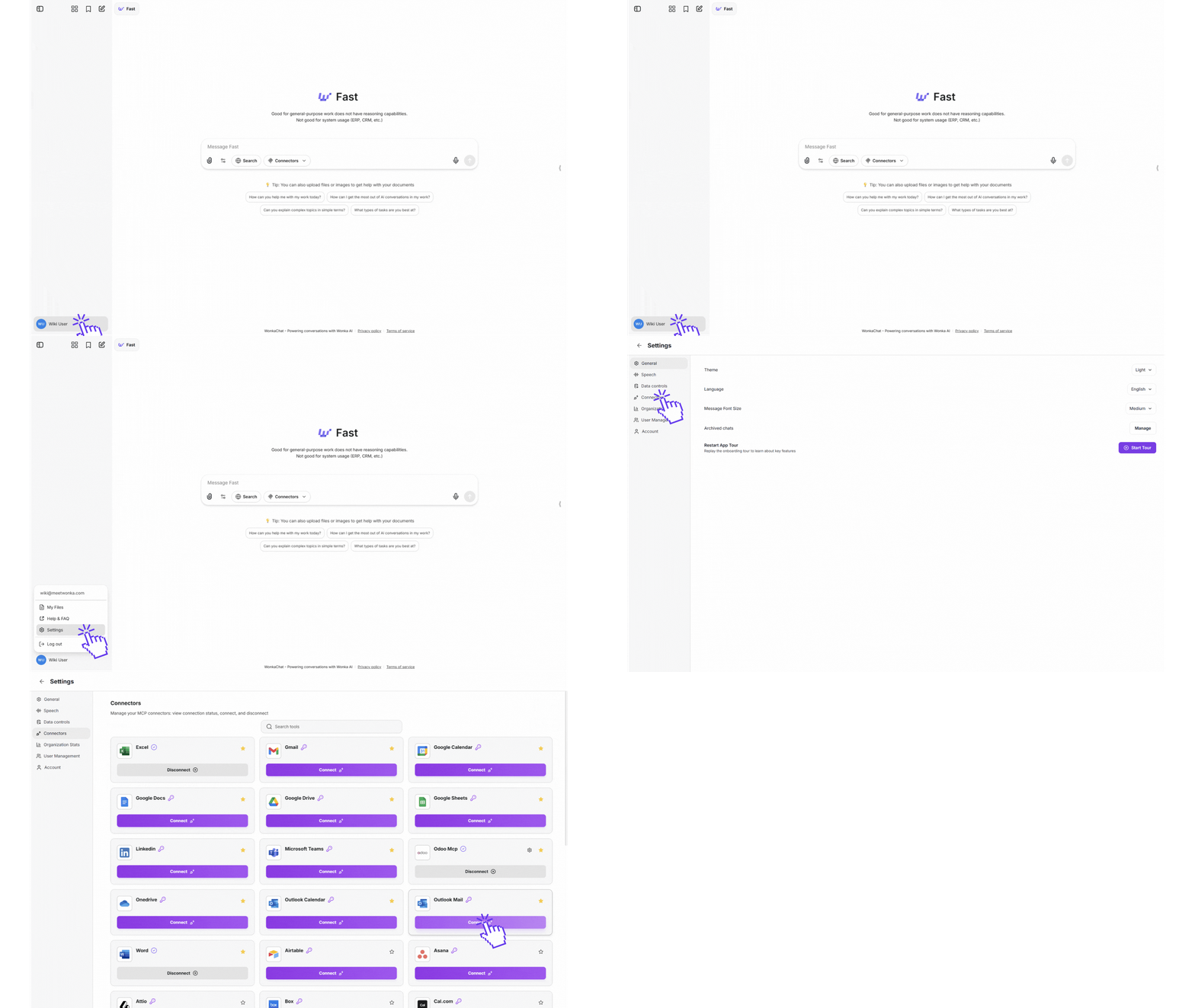
In your WonkaChat interface, find the Connectors inside the settings at the bootom left of the screen. This panel displays all available business system connections.
Connectors panel and Outlook Mail connection example
If you don’t see the right side panel, click the arrow icon in the middle-right of your screen to expand the sidebar.
2
Select Your Connection
Browse or search for the connection you want to add. Click the connection’s button to begin the connection process.Popular first connections:
Outlook Mail or Gmail for email access
Slack for team communication
Google Drive or OneDrive for document access
Not sure which software to connect first? Start with your email provider, it’s the most versatile connection for daily tasks.
3
Authenticate Your Account
A credential window will appear, requesting authentication for the selected business system. The process varies slightly by connection type:
OAuth
API Key
Custom
OAuth authentication is used for most of the softwares like Outlook, Gmail, Google Drive.
Click “Connect”.
You’ll be redirected to the software’s official login page.
Enter your credentials on the software’s secure site.
You’ll be automatically redirected back to WonkaChat.
Some softwares require an API key. If you need assistance obtaining or using your API key, see the Getting Help page for personalized support options.
Click the Gear Icon.
Obtain your API key directly from the provider.
Paste the API key into the WonkaChat credential field.
Click “Connect”.
Need help finding your API key? Most softwares have it under Settings → API or Settings → Integrations. Check the software’s documentation if you’re not sure.
Some business systems, such as Odoo, require custom configuration beyond standard authentication. If you need assistance to connect, see the Getting Help page for personalized support options.
Some business systems require additional connection parameters:
Database name or instance URL
Server endpoint
Username and password combination
Custom authentication tokens or credentials
Connection Process:
Click the Gear Icon.
Review the connection requirements displayed in the WonkaChat credential window.
Enter all required fields.
Verify everything is accurate before proceeding.
Click “Connect” to establish the connection.
Each software displays its specific connection requirements in the credential window.If you need assistance with connection details or encounter any issues, contact our support team for personalized help.
Always verify you’re on the official WonkaChat page of your organization before entering credentials or connecting to any software.
4
Enable The Connection
After successful authentication, you need to activate the connection for the AI model you’re using.
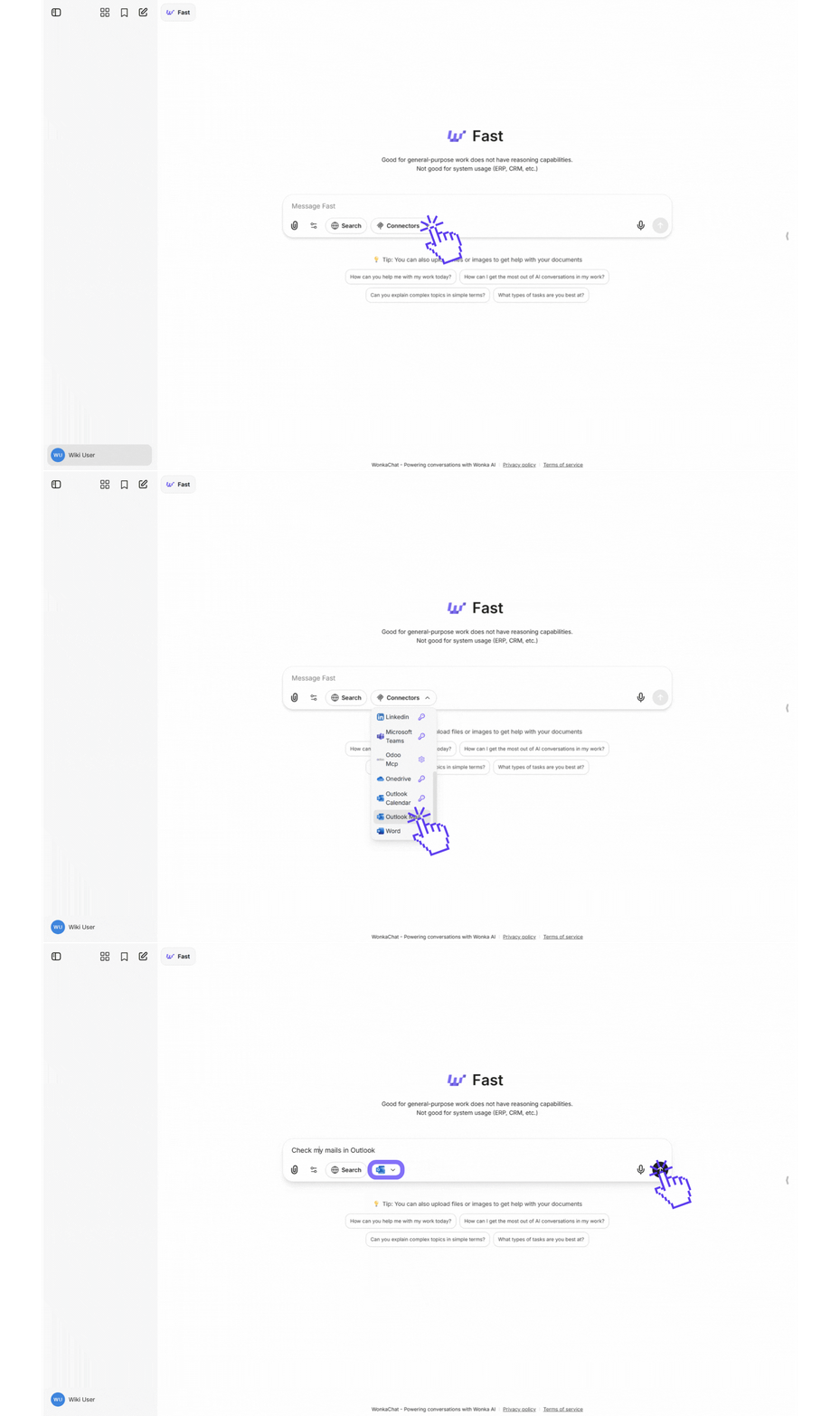
Click the “Connectors” button under the chat input field
Find your business system in the list
Click on it to enable the connection for the current chat
Outlook Mail connection example
Once enabled, the AI model can access this business system whenever you ask it to. You can enable or disable connections at any time.
5
Test Your Connection
Verify the connection is working by asking the AI a simple question that requires the business system.
If the AI successfully retrieves and displays information, your connection is working correctly!
Connection successful! You can now use natural language to access and interact with this business system through WonkaChat.
6
Disable A Connection
To remove a connection:
Click the “Connectors” button under the chat input field
Find your business system in the list
Click on it to disable the connection for the current chat by removing it from the selected connections
Disconnecting a business system immediately revokes WonkaChat’s access to that service. However, your authentication credentials remain stored securely for future reconnections.
Data you personally have permission to view in the connected business system
Information you explicitly ask it to retrieve
Resources within your organizational boundaries (if applicable)
WonkaChat cannot:
Access data from other users unless they’ve shared it with you
Bypass your business system’s permission system
Read or modify data without your explicit request
What Actions Can WonkaChat Perform?
WonkaChat’s capabilities depend entirely on what tools are implemented for each business system. If a provider exposes an action through their connection (MCP), the AI can perform it. If an action isn’t implemented in the MCP, the AI cannot access it, regardless of whether the underlying business system supports it.Common capabilities include:
Read: View emails, documents, tasks, calendar events, database records, etc.
Delete: Remove items, archive records, clear data (only when you explicitly ask)
Search: Query across documents, find specific records, filter data
Execute: Run workflows, trigger automations, perform calculations
Each connection (MCP) defines its own set of available actions. Check the specific business system’s documentation to see what operations are supported through its MCP implementation.
Important: The AI model is restricted to only the actions that the MCP exposes. Even if a business system’s native interface supports a feature, WonkaChat can only use it if the corresponding MCP server has implemented that capability.All actions require your explicit instruction through conversation. WonkaChat only performs actions when you ask it to.
How Are Credentials Stored?
Your authentication tokens are:
Encrypted at rest in our secure database
Unique to your user account (never shared with others)
Automatically refreshed to maintain connection
Deleted immediately when you disconnect a business system
WonkaChat never stores your actual passwords. It only stores the secure access tokens provided by the OAuth flow or API key you input.
Once you’ve connected several business systems, you can combine them in powerful ways:
Cross-Platform Queries
Ask questions that span multiple business systems in one request.Example:“Check my Google Calendar for availability and send those times to Sarah via Outlook.”
Data Transfer
Move information between business systems without manual copy-paste.Example:“Take the action items from this Slack thread and create tasks in ClickUp.”
Automated Workflows
Build agents that monitor one business system and take actions in another.Example: Agent that checks Salesforce for new leads and creates follow-up tasks in Asana.
Unified Reporting
Combine data from multiple sources for comprehensive insights.Example:“Summarize my week: emails from Outlook, meetings from Calendar, and completed tasks from Notion.”
You can always add more connections later as you discover needs.
Test Before Complex Workflows
After connecting a business system:
Ask simple queries first to verify it works
Gradually increase complexity
Understand what data the business system exposes before building workflows
Review Permissions Periodically
Every few months:
Review which business systems are connected
Disconnect business systems you no longer use
Verify connections are still active and working
Create AI Agents with Focused Tool Sets
Why This Matters:AI agents with purpose-built business system connections deliver significantly better results than general-purpose setups. When an agent has access only to relevant business systems for its specific task, it:
Reduces hallucinations by limiting context to what’s actually needed
Improves accuracy by focusing on domain-specific data sources
Delivers faster responses with fewer irrelevant tool checks
Maintains better context within its area of expertise
Faster because it’s not checking email or CRM systems
Better at understanding technical context
Executive Assistant Agent
Connect only: Outlook, Google Calendar, Google Drive, Notion
Dedicated to scheduling and document management
Won’t accidentally access technical or sales systems
More reliable for personal productivity tasks
Operations Agent
Connect only: Odoo, QuickBooks, Airtable, Slack
Focused on business operations and finance
Specialized knowledge of operational workflows
Better at cross-referencing operational data
Start by creating 2-3 specialized agents for your most common workflows. You’ll quickly see the quality difference compared to one agent with all tools and softwares connected.