
The Prompt Library helps you capture successful prompts and turn them into reusable templates for common tasks.
Why Build a Prompt Library?
Consistency
Use proven prompts that deliver reliable results every time.
Efficiency
Skip rewriting the same instructions and jump straight to results.
Knowledge Sharing
Share effective prompts with your team to standardize AI usage.
Continuous Improvement
Refine and iterate on prompts over time based on what works best.
Video Walkthrough
Watch this step-by-step video to learn how to create and manage saved prompts in your library:Creating Your First Saved Prompt
1
Identify Successful Prompts
When you get great results from a prompt, mark it as a candidate for your library. Look for prompts that:
- Produce consistently good outputs
- Solve common recurring tasks
- Include useful structure or formatting
- Minimize errors through thorough testing
2
Save to Your Library
To save a prompt to your library, navigate to the right panel and select the “Prompts” section. From there, create or acces any prompt in your library.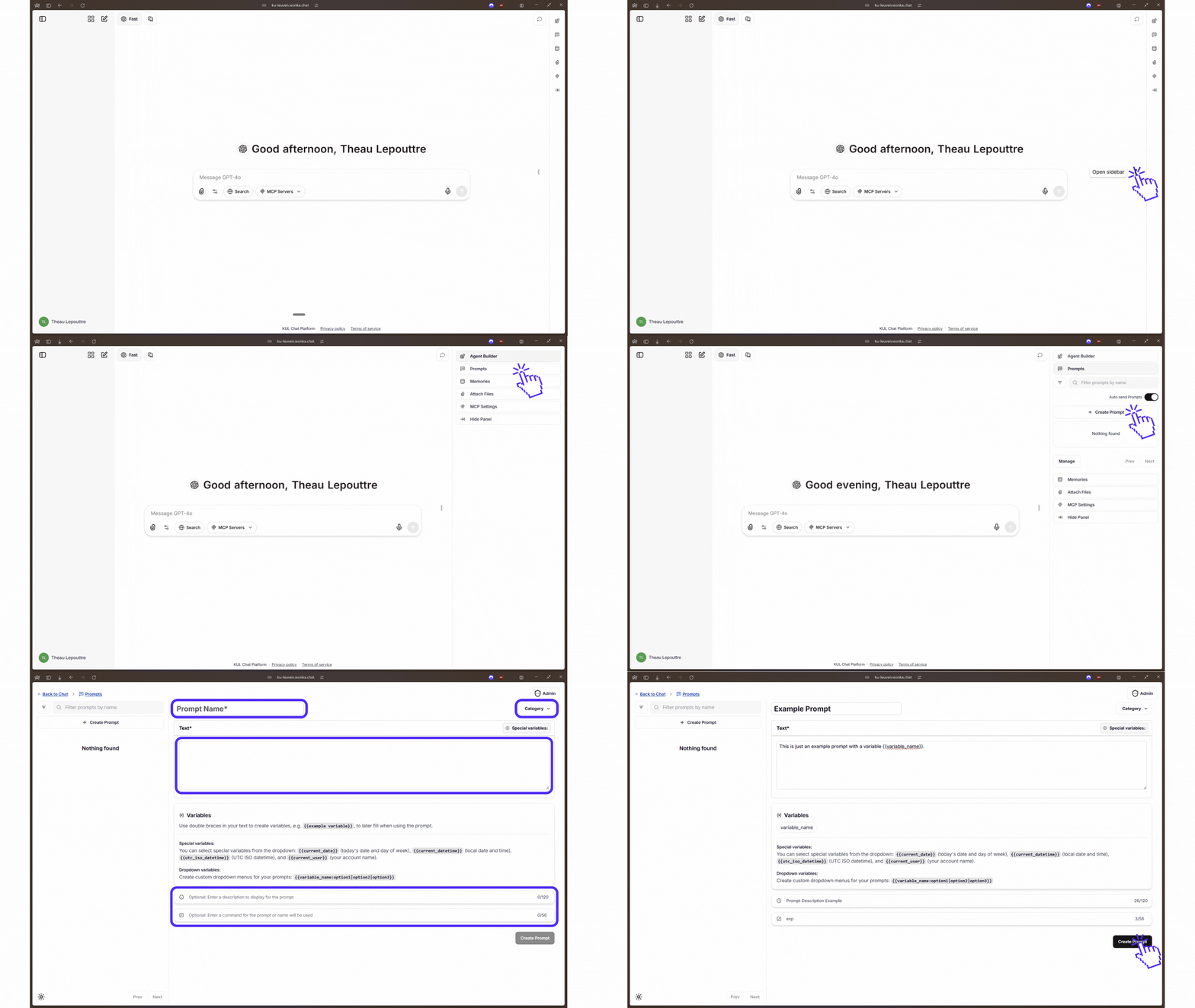
Locate the Library Icon
3
Fill in Prompt Details
In the prompt creation form, provide:
- Prompt name (required): A descriptive name for your prompt
- Text (required): The full prompt text with any variables you need
- Description (optional): A short description displayed when using the prompt
- Command name (optional): Create a custom command shortcut to invoke this prompt quickly
4
Save and Use
Once saved, your prompt appears in the Prompts library where you can:
- Search for prompts by name using the filter
- Click on a prompt to use it in a conversation
- Fill in any variables when using the prompt
Quick usage: Prompts can be invoked by typing
/ followed by their name or your custom command directly from any conversation.Prompt example with a custom command '/exp'
Variable Management
Make your prompts flexible and reusable with variables you customize each time. WonkaChat supports three types of variables: basic variables for your own input, special variables that automatically insert system info, and dropdown variables that let you pick from preset options.- Basic Variable Syntax
- Special Variables
- Dropdown Variables
Use double curly braces
{{ }} to define variables anywhere in your prompt.Example 1:- When using, you’ll be asked to fill in
{{document_type}}(e.g., “meeting notes”) and{{target_audience}}(e.g., “executive team”).
Well-designed variables make your prompts adaptable to many situations without losing effectiveness.
Prompt Library Examples
Ready-to-use templates, organized by difficulty. Start with simple communication and organization prompts. Advance to technical and detailed prompts as you gain confidence.- Simple Examples
- Advanced Examples
Communication and Organization
Email Composer
Email Composer
Purpose: Quickly draft a professional emailPrompt:Variables:
{{tone}}: Email tone (dropdown){{recipient}}: Person or group{{subject}}: Email topic{{main_points}}: What to cover
Meeting Notes Summary
Meeting Notes Summary
Purpose: Turn rough notes into a clean summaryPrompt:Variables:
{{current_date}}: Today’s date{{participants}}: Who attended{{raw_notes}}: Notes from the meeting
Short Article Summarizer
Short Article Summarizer
Purpose: Condense articles or web contentPrompt:Variables:
{{content_type}}: Type of content (dropdown){{topic}}: Subject of the article{{target_audience}}: Reader (e.g., students, team){{content}}: Text to summarize
Best Practices
Descriptive Names
Use clear, descriptive names that make prompts easy to find when searching your library.
Add Descriptions
Utilize the optional description field to provide context about when and how to use each prompt.
Create Slash Commands
For frequently used prompts, set up slash commands for instant access without searching.
Test and Refine
Regularly test your saved prompts and update them based on the results you get.
Tips for a clean prompt library
Use Descriptive Variable Names
Use Descriptive Variable Names
Choose variable names that clearly indicate what information is needed. Use
{{user_feedback}} instead of {{text}} or {{input}}.Leverage Special Variables
Leverage Special Variables
Take advantage of
{{current_date}}, {{current_user}}, and other built-in variables to automatically include context without manual input.Create Dropdown Options for Common Choices
Create Dropdown Options for Common Choices
Use the dropdown syntax
{{variable:option1|option2|option3}} for variables with a limited set of valid values to reduce typing and errors.Keep Prompts Focused
Keep Prompts Focused
Create separate prompts for different tasks rather than one overly complex prompt.
Focused prompts are not only easier to maintain and reuse, but also yield better results.