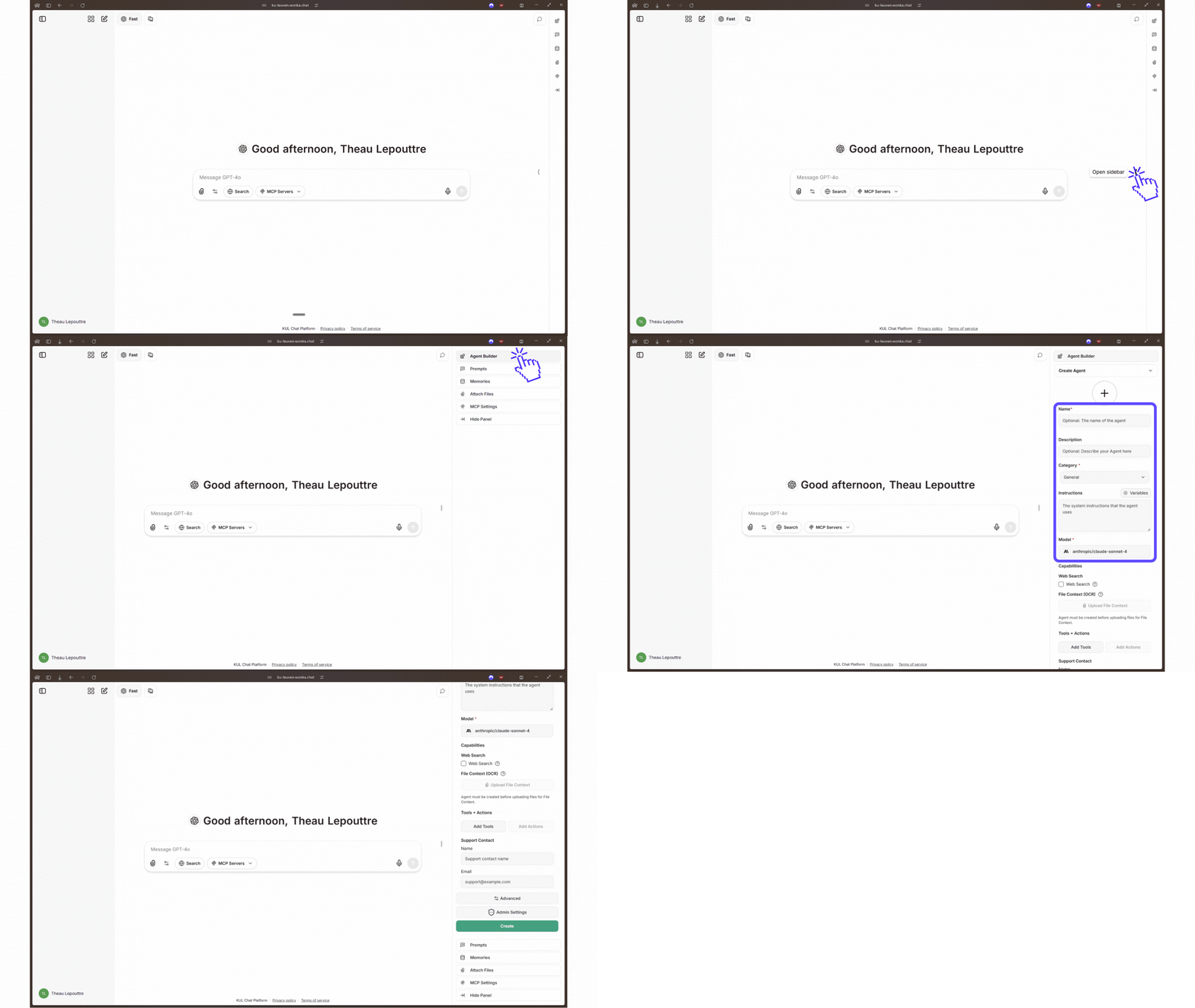
Explore the step-by-step instructions on creating AI agents by video. These two videos visually demonstrates the key decisions and actions you need to build, configure, and deploy your own custom agents.
Navigate to the agent creation interface and click “Create New Agent.”
Agent creation interface
3
Name Your Agent
Choose a clear, descriptive name that indicates purpose.Good: “Customer Support Assistant,” “Q4 Sales Data Analyzer” Avoid: “Helper,” “Agent 1”
If planning organization-wide sharing, choose names that make sense to all users.
4
Write Your Instructions
Instructions specify your agent’s role, expertise, tone, and behavior. Write clear, detailed instructions to ensure the agent consistently performs as intended.
State what the agent is and does.Example: “You are a customer support specialist for our SaaS platform. Help users resolve technical issues, answer product questions, and guide them through common workflows.”
Communication Style
Define tone and format.Example: “Communicate in a friendly, professional tone. Be concise but thorough. Use bullet points for clarity.”
Operational Guidelines
Provide specific rules for how the agent should execute tasks and make decisions.Example: “When analyzing sales data, always compare against the previous quarter and year-over-year metrics. If data is incomplete, note the gaps explicitly rather than making assumptions.”
Tool Usage Guidelines
Specify when and how the agent should use available tools.Example: “Use the CRM tool to retrieve customer information before making recommendations. When querying the database, limit results to the last 90 days unless specified otherwise.”
Business Context
Include company-specific information.Example: “Support hours: 9 AM-6 PM EST. We offer three tiers: Basic, Pro, Enterprise.”
Clear, detailed instructions are the foundation of agent effectiveness.
5
Choose an AI Model
Select the right model based on your agent’s task complexity and usage frequency.
Use GPT-4o mini (most cost-effective) or Gemini 2.5 Flash (fast with large context)
Example tasks: Email drafting, data lookup, simple formatting, high-volume operations
For complex reasoning:
Use Claude Sonnet 4 or GPT-5 (advanced capabilities)
Example tasks: Multi-step analysis, strategic planning, multi-tool usage
For long context:
Use Gemini 2.5 Pro (1M context window)
Example tasks: Document analysis, comprehensive research
Start with a cost-effective model like GPT-4o mini for most agents. Upgrade to more capable models (GPT-5, Claude Sonnet 4, or Gemini 2.5 Pro) only if results don’t meet your needs.
Need detailed guidance? See the Model Selection Guide in the Advanced Knowledge tab for comprehensive comparisons, pricing, and use case recommendations.
6
Connect External Softwares (Optional)
Add MCP connection if your agent needs to interact with external systems.Tool selection principles:
Only add tools the agent actually needs
Too many tools can cause selection confusion
Ensure you have permissions for assigned tools
Agents can only access tools explicitly assigned to them and inherit your personal permissions. See the Tool Restrictions section in Access Control for more details.
Thorough testing ensures users get reliable results.
8
Deploy or Share
Personal use: Start using immediately, refine based on real usageOrganization sharing: Contact administrator, provide context on purpose and value, await review and approval
This guide introduces five key elements that help create more effective agents. While these fundamentals provide a solid starting point, they represent examples of good practices rather than a complete framework. However, building truly reliable agents requires deeper exploration and iteration beyond these basics.
1. Persona: Who is your agent?
Define your agent’s role, expertise, and perspective to shape response style and depth.Example:
Copy
You are a senior financial advisor with 20 years of experience
specializing in retirement planning for conservative investors.
Specific beats generic: “You are a helpful assistant” provides no guidance. Define expertise, experience level, and specialization.
2. Goals: What should it achieve?
Clearly state the objective and desired outcome for every interaction.Example:
Copy
Your goal is to analyze sales data from the last quarter,
identify the top 3 declining products, and recommend specific
actions to reverse the trend. Present findings in a concise
executive summary format.
Specific, measurable goals produce consistent, actionable results.
3. Tools: What can it use?
Specify which tools to use and when. Provide clear guidelines for tool selection when multiple options exist.Example:
Copy
Available tools:- database_query: Use for all customer data lookups- crm_api: Use only when database is unavailable- email_tool: Use for sending notificationsAlways query the database before making recommendations.Never update records without explicit user confirmation.
Too many similar tools confuse agents. If your agent struggles with tool selection, provide clearer usage criteria or reduce tool count.
4. Constraints: What are the boundaries?
Set clear boundaries for format, tone, length, permissions, and prohibited actions.Example:
Copy
Constraints:- Keep responses under 200 words unless analysis requires detail- Use professional but friendly tone- Never make promises about delivery dates- If customer requests exceed \$500, escalate to human approval- Format all data tables in markdown
Constraints prevent common failure modes. Add new constraints as you discover edge cases in production.
5. Context: What background matters?
Provide relevant background information, business rules, and domain-specific knowledge.Example:
Copy
Company context:- We serve B2B SaaS customers with 3 pricing tiers- Standard support hours: 9 AM-6 PM EST, Mon-Fri- Enterprise customers get priority within 2 hours- Our refund policy allows 30-day money-back guarantee- Common abbreviations: ARR (Annual Recurring Revenue), MRR (Monthly Recurring Revenue)
Include terminology, acronyms, business rules, and any domain knowledge the agent needs to interpret requests correctly.
Key Features: Largest context window (1M tokens), optimized for speed and document analysis
Thinking Models Available: GPT-5, Claude Sonnet 4, Claude Sonnet 3.7 Thinking, and Gemini 2.5 Pro all support advanced reasoning and thinking capabilities.
Only grant tools that are absolutely necessary for the agent’s specific task. If your agent drafts emails using Outlook or Gmail, remove the “send email” capability to prevent accidental sends. The agent can prepare drafts while you maintain final control over sending.
Fewer tools mean fewer potential bad behavior risks and more predictable output.
Avoid connecting systems that shouldn’t interact with each other in the same agent. If you have two software systems that should remain separate, don’t add both integrations to the same agent. Create separate agents for different domains to maintain clear boundaries.
Begin with minimal permissions and test extensively before expanding capabilities. Avoid deploying agents with full permissions initially. Unexpected behavior is common and should be identified during testing.Recommended approach:
Begin with read-only access when possible
Test with non-production data first
Gradually add tools as you verify behavior
Monitor agent actions closely during initial deployment
Don’t try to build everything in one go. Test incrementally to avoid surprising and unwanted results.