> ## Documentation Index
> Fetch the complete documentation index at: https://help.wonka.chat/llms.txt
> Use this file to discover all available pages before exploring further.
# Prompt Library
> Save, organize, and reuse your best prompts with variables for efficient AI interactions.
Build a personal library of effective prompts that you can reuse and customize with variables.
Keep the prompts that work well and reuse them across conversations and projects; save time and maintain consistency across your AI interactions.
The Prompt Library helps you capture successful prompts and turn them into reusable templates for common tasks.
### Why Build a Prompt Library?
Use proven prompts that deliver reliable results every time.
Skip rewriting the same instructions and jump straight to results.
Share effective prompts with your team to standardize AI usage.
Refine and iterate on prompts over time based on what works best.
## Video Walkthrough
Watch this step-by-step video to learn how to create and manage saved prompts in your library:
## Creating Your First Saved Prompt
When you get great results from a prompt, mark it as a candidate for your library. Look for prompts that:
* Produce consistently good outputs
* Solve common recurring tasks
* Include useful structure or formatting
* Minimize errors through thorough testing
Consider using the bookmark feature to store prompts in your personal library before officially adding them to your prompt library.
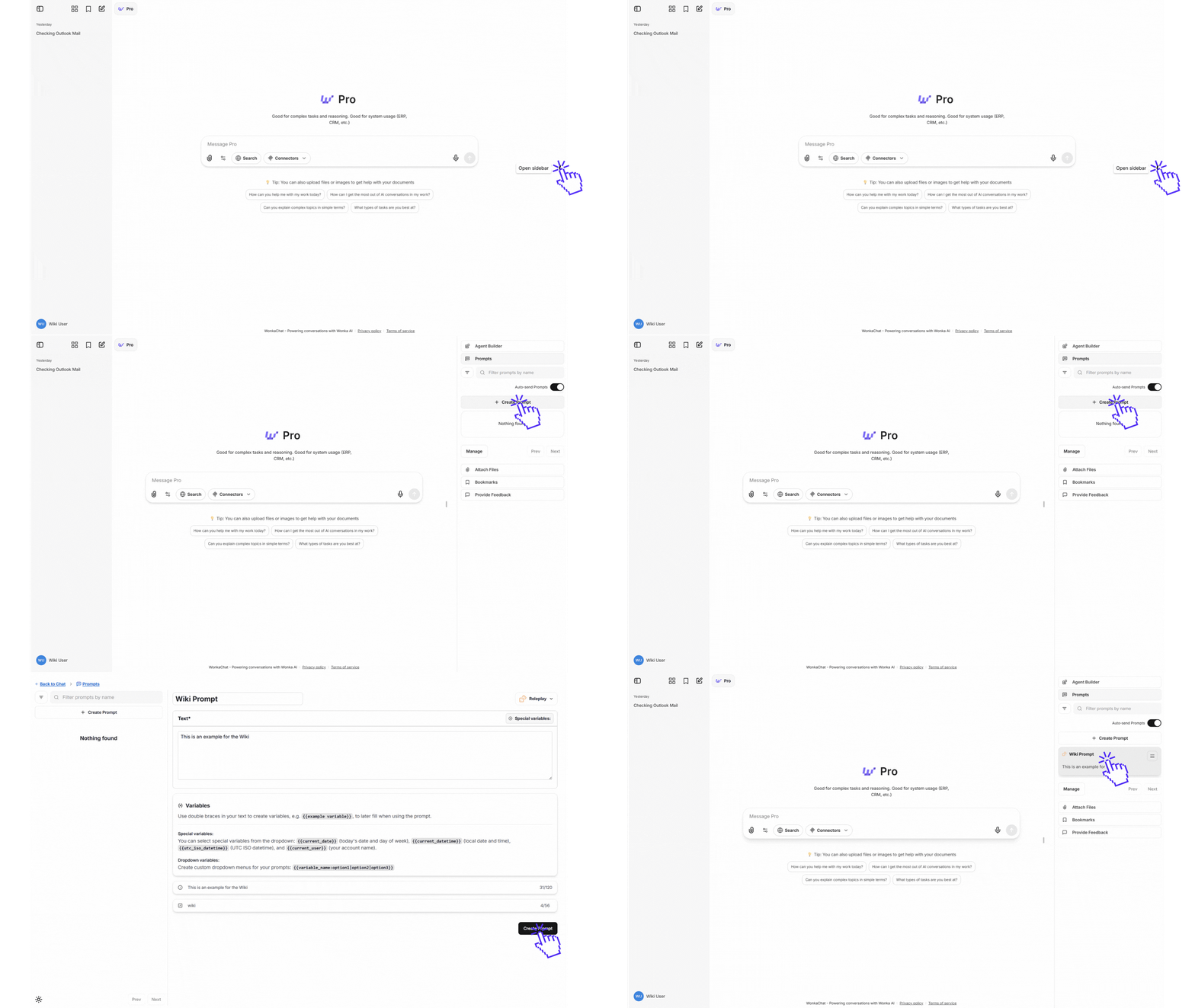
To save a prompt to your library, navigate to the right panel and select the "Prompts" section. From there, create or acces any prompt in your library.
In the prompt creation form, provide:
* **Prompt name** (required): A descriptive name for your prompt
* **Text** (required): The full prompt text with any [*variables*](#variable-management) you need
* **Description** (optional): A short description displayed when using the prompt
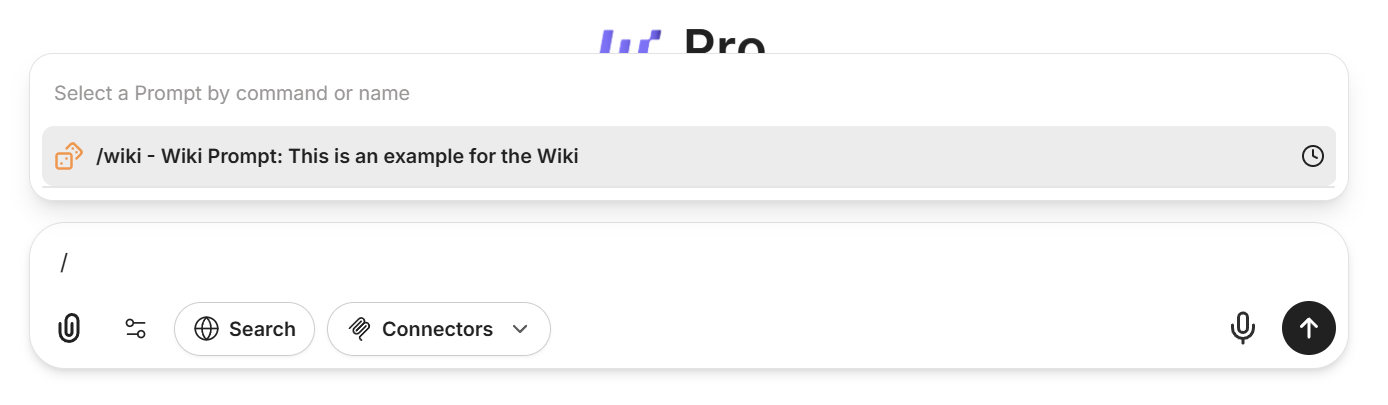
* **Command name** (optional): Create a custom command shortcut to invoke this prompt quickly
Give your saved prompts descriptive names that explain their purpose, like "Code Review Template" or "Meeting Notes Summary."
Once saved, your prompt appears in the Prompts library where you can:
* Search for prompts by name using the filter
* Click on a prompt to use it in a conversation
* Fill in any variables when using the prompt
Quick usage: Prompts can be invoked by typing `/` followed by their name or your custom command directly from any conversation.
***
## Variable Management
Make your prompts flexible and reusable with variables you customize each time. WonkaChat supports three types of variables: **basic variables** for your own input, **special variables** that automatically insert system info, and **dropdown variables** that let you pick from preset options.
Use double curly braces `{{ }}` to define variables anywhere in your prompt.
**Example 1:**
```
Summarize the {{document_type}} for the {{target_audience}}.
```
* When using, you'll be asked to fill in `{{document_type}}` (e.g., "meeting notes") and `{{target_audience}}` (e.g., "executive team").
**Example 2:**
```
Review the {{codebase}} and highlight {{review_focus}}.
```
Insert dynamic information using these built-in options (no manual entry needed):
* `{{current_date}}` - Today's date
* `{{current_user}}` - Your username
**Example 1:**
```
Prepare a summary for {{current_user}} as of {{current_date}}.
```
**Example 2:**
```
Log entry created on {{current_datetime}} by {{current_user}}.
```
Use dropdowns for fields with limited, pre-defined choices.
**Example 1:**
```
Summarize this as {{output_style:bullet points|paragraph|table}}.
```
**Example 2:**
```
Compare the solution across {{environment:development|staging|production}} environments.
```
Choose an option from the dropdown each time you use the prompt.
Well-designed variables make your prompts adaptable to many situations without losing effectiveness.
***
## Prompt Library Examples
Ready-to-use templates, organized by difficulty. Start with simple communication and organization prompts. Advance to technical and detailed prompts as you gain confidence.
### Communication and Organization
**Purpose**: Quickly draft a professional email
**Prompt**:
```
Write a {{tone:formal|casual}} email to {{recipient}} about {{subject}}.
Main points:
{{main_points}}
```
**Variables**:
* `{{tone}}`: Email tone (dropdown)
* `{{recipient}}`: Person or group
* `{{subject}}`: Email topic
* `{{main_points}}`: What to cover
**Purpose**: Turn rough notes into a clean summary
**Prompt**:
```
Summarize these meeting notes:
Date: {{current_date}}
People: {{participants}}
Notes: {{raw_notes}}
```
**Variables**:
* `{{current_date}}`: Today's date
* `{{participants}}`: Who attended
* `{{raw_notes}}`: Notes from the meeting
**Purpose**: Condense articles or web content
**Prompt**:
```
Summarize this {{content_type:article|blog post}} about {{topic}} for {{target_audience}}:
{{content}}
```
**Variables**:
* `{{content_type}}`: Type of content (dropdown)
* `{{topic}}`: Subject of the article
* `{{target_audience}}`: Reader (e.g., students, team)
* `{{content}}`: Text to summarize
### Technical, Coding, and Analytical Prompts
**Purpose**: Request a focused code review
**Prompt**:
```
Review this {{language}} code for {{component_name}}.
{{code_block}}
Comment on:
1. Readability
2. {{review_focus}}
```
**Variables**:
* `{{language}}`: Programming language
* `{{component_name}}`: Name or purpose of code
* `{{code_block}}`: Code to review
* `{{review_focus}}`: Priority area (e.g., security, performance)
**Purpose**: Analyze and fix a bug
**Prompt**:
```
Help debug this in {{system_component}}.
Error: {{error_message}}
Code:
{{code_snippet}}
```
**Variables**:
* `{{system_component}}`: Where the bug occurs
* `{{error_message}}`: Full error message
* `{{code_snippet}}`: Relevant code
**Purpose**: Generate code documentation fast
**Prompt**:
```
Document this {{language}} code as {{doc_type:API|README}}.
{{code_block}}
```
**Variables**:
* `{{language}}`: Programming language
* `{{doc_type}}`: Kind of documentation (dropdown)
* `{{code_block}}`: Code to document
**Purpose**: Analyze data and summarize insights
**Prompt**:
```
Analyze {{data_type:sales|user data}} for {{business_question}}:
{{data_content}}
```
**Variables**:
* `{{data_type}}`: Type of data (dropdown)
* `{{business_question}}`: What to investigate
* `{{data_content}}`: The data itself
**Purpose**: Suggest key test scenarios
**Prompt**:
```
Create test cases for {{feature_name}} in a {{application_type:web|API}}.
User story: {{user_story}}
```
**Variables**:
* `{{feature_name}}`: Feature name
* `{{application_type}}`: App type (dropdown)
* `{{user_story}}`: Short user requirement
**Purpose**: Write or improve SQL queries
**Prompt**:
```
{{task_type:Write|Optimize}} an SQL query for {{database_type:PostgreSQL|MySQL}}.
Goal: {{query_requirement}}
```
**Variables**:
* `{{task_type}}`: What to do (dropdown)
* `{{database_type}}`: Database system (dropdown)
* `{{query_requirement}}`: Query objective
***
### Best Practices
Use clear, descriptive names that make prompts easy to find when searching your library.
Utilize the optional description field to provide context about when and how to use each prompt.
For frequently used prompts, set up slash commands for instant access without searching.
Regularly test your saved prompts and update them based on the results you get.
Start with 5-10 prompts for your most common tasks, then expand your library gradually as you identify more reusable patterns.
***
## Tips for a clean prompt library
Choose variable names that clearly indicate what information is needed. Use `{{user_feedback}}` instead of `{{text}}` or `{{input}}`.
Take advantage of `{{current_date}}`, `{{current_user}}`, and other built-in variables to automatically include context without manual input.
Use the dropdown syntax `{{variable:option1|option2|option3}}` for variables with a limited set of valid values to reduce typing and errors.
Create separate prompts for different tasks rather than one overly complex prompt.
Focused prompts are not only easier to maintain and reuse, but also yield better results.