> ## Documentation Index
> Fetch the complete documentation index at: https://help.wonka.chat/llms.txt
> Use this file to discover all available pages before exploring further.
# Finding and Accessing Agents
> Navigate WonkaChat to locate and access AI agents for your workflows.
Agents are located in two places: the creation interface for building and managing agents, and the usage interface for starting conversations with agents.
***
## Locating Agents
### Agent Usage Interface
There are two ways to access and start conversations with agents:
#### 1. Agent Marketplace
Access the agent marketplace from the top left of your screen. The marketplace organizes agents by categories, making it easy to discover and browse available agents. It is especially useful when you have many agents to choose from.
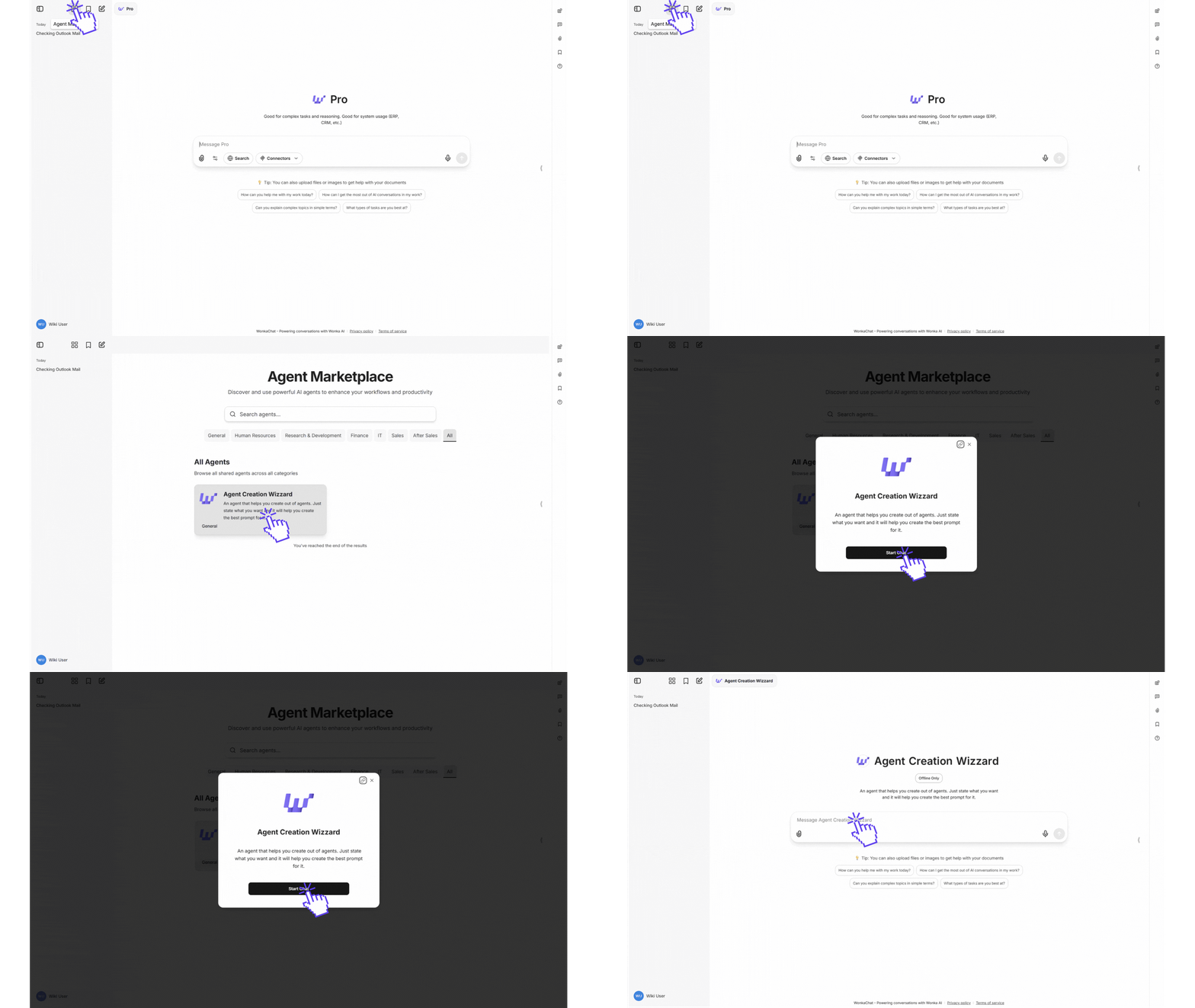 **Features:**
* Browse agents by category
* Search functionality for quick discovery
* View detailed agent descriptions
#### 2. My Agents Quick Access
Access your agents directly from the model selection dropdown at the top of the screen. At the bottom of the dropdown, you'll see "My Agents". You can hover over it to reveal a list of all your available agents with a search field.
**Features:**
* Browse agents by category
* Search functionality for quick discovery
* View detailed agent descriptions
#### 2. My Agents Quick Access
Access your agents directly from the model selection dropdown at the top of the screen. At the bottom of the dropdown, you'll see "My Agents". You can hover over it to reveal a list of all your available agents with a search field.
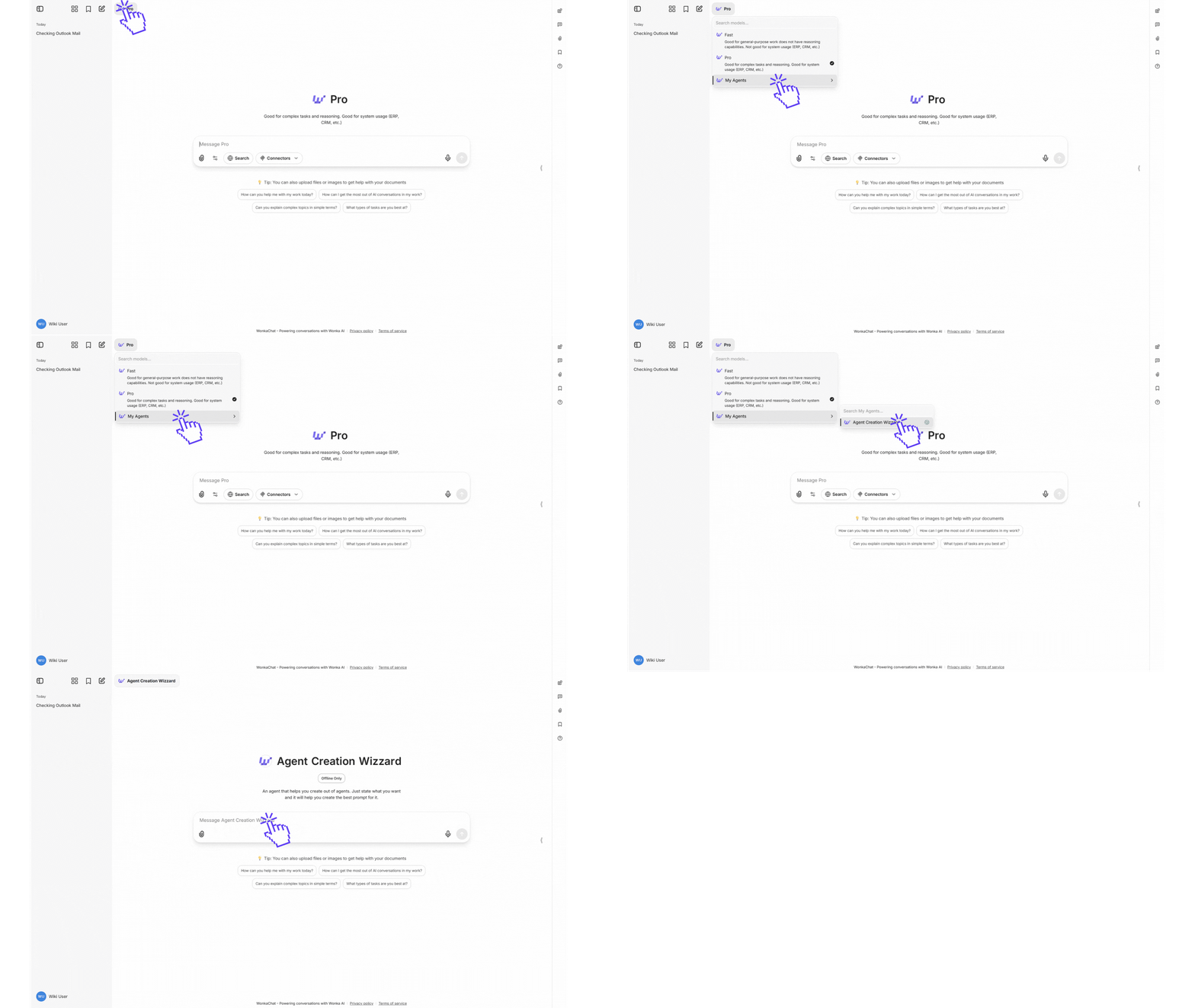 **Features:**
* Quick access to your frequently used agents
* Integrated search field for fast agent lookup
* No need to navigate away from your current screen
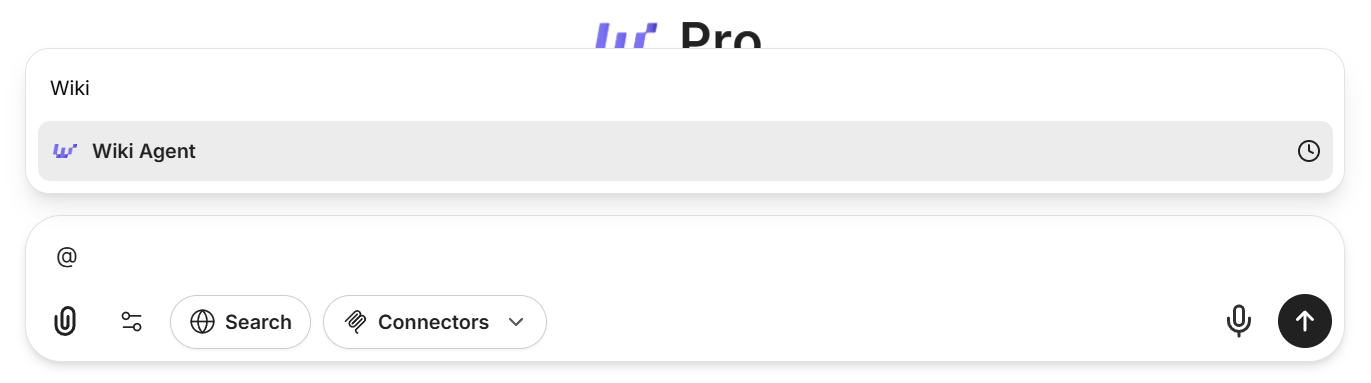
Quick usage: Agents can be invoked by typing `@` followed by their name directly from any conversation.
**Features:**
* Quick access to your frequently used agents
* Integrated search field for fast agent lookup
* No need to navigate away from your current screen
Quick usage: Agents can be invoked by typing `@` followed by their name directly from any conversation.
 ***
### Agent Creation & Management
In your WonkaChat interface, find the **Agent Builder** on the right side of the screen. This panel allows you to create and manage your AI agents.
***
### Agent Creation & Management
In your WonkaChat interface, find the **Agent Builder** on the right side of the screen. This panel allows you to create and manage your AI agents.
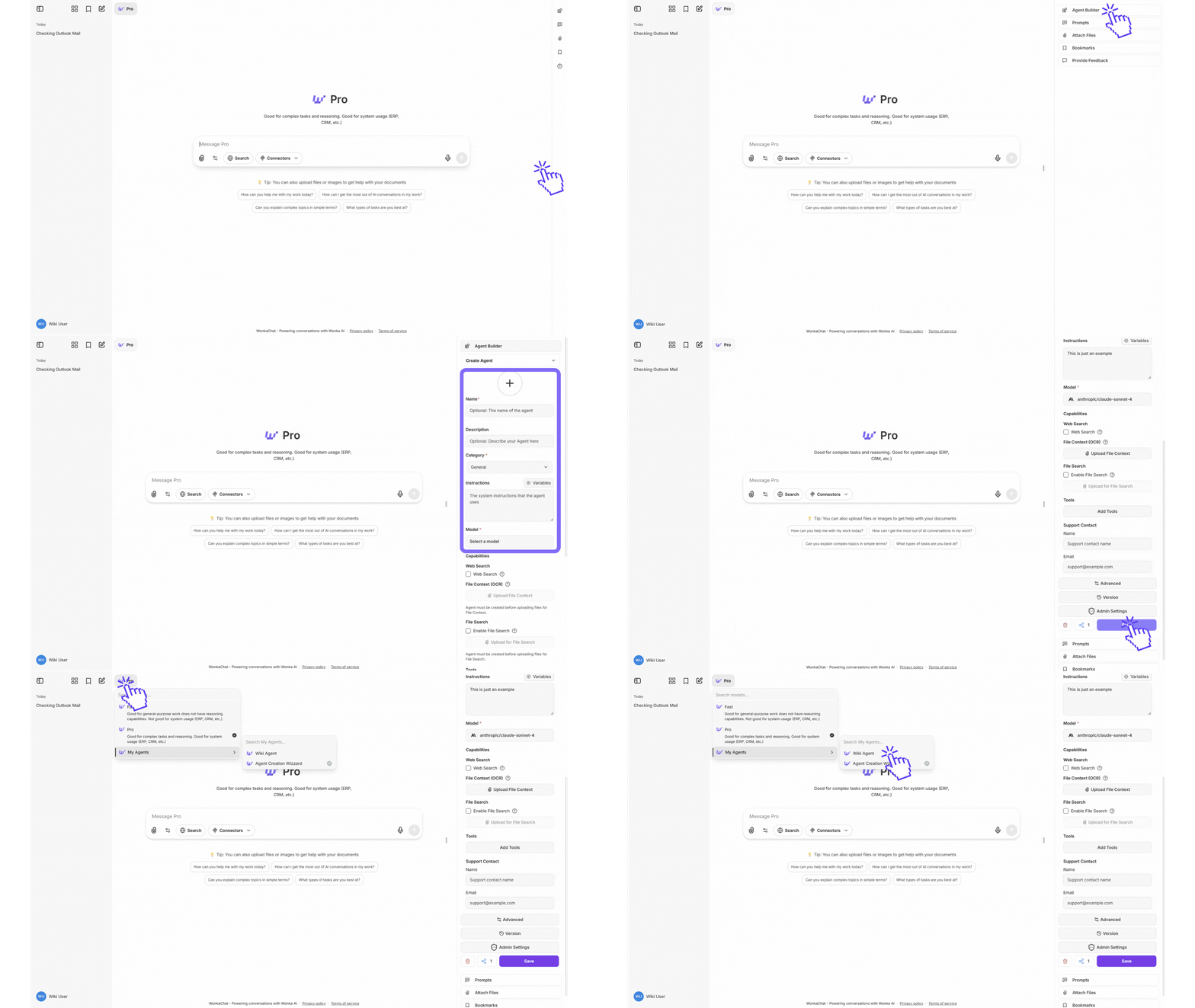 If you don't see the right side panel, click the arrow icon in the middle-right of your screen to expand the sidebar.
**What you can do:**
* Create new agents with custom instructions
* Give files and capabilities to agents
* Assign Tools (External Connections) to agents
* Modify existing agents configurations
All users can create personal agents. Organization-wide sharing requires administrator approval.
***
## Next Steps
Learn how to get the best results from pre-built agents.
Build your own agent tailored to your workflows.
If you don't see the right side panel, click the arrow icon in the middle-right of your screen to expand the sidebar.
**What you can do:**
* Create new agents with custom instructions
* Give files and capabilities to agents
* Assign Tools (External Connections) to agents
* Modify existing agents configurations
All users can create personal agents. Organization-wide sharing requires administrator approval.
***
## Next Steps
Learn how to get the best results from pre-built agents.
Build your own agent tailored to your workflows.